Help Centre
 SIM Activation
All phones
1. Insert the Eeyou Mobile SIM card into the device and turn the device on.
2. Open a browser on your device and go to eeyoumobile.com/my/lte. This will take you to the Eeyou Mobile customer portal. If your device has no browser, access the customer portal on a computer at eeyoumobile.com/my/lte.
3. Log in with your existing Eeyou Mobile account or create a new account.
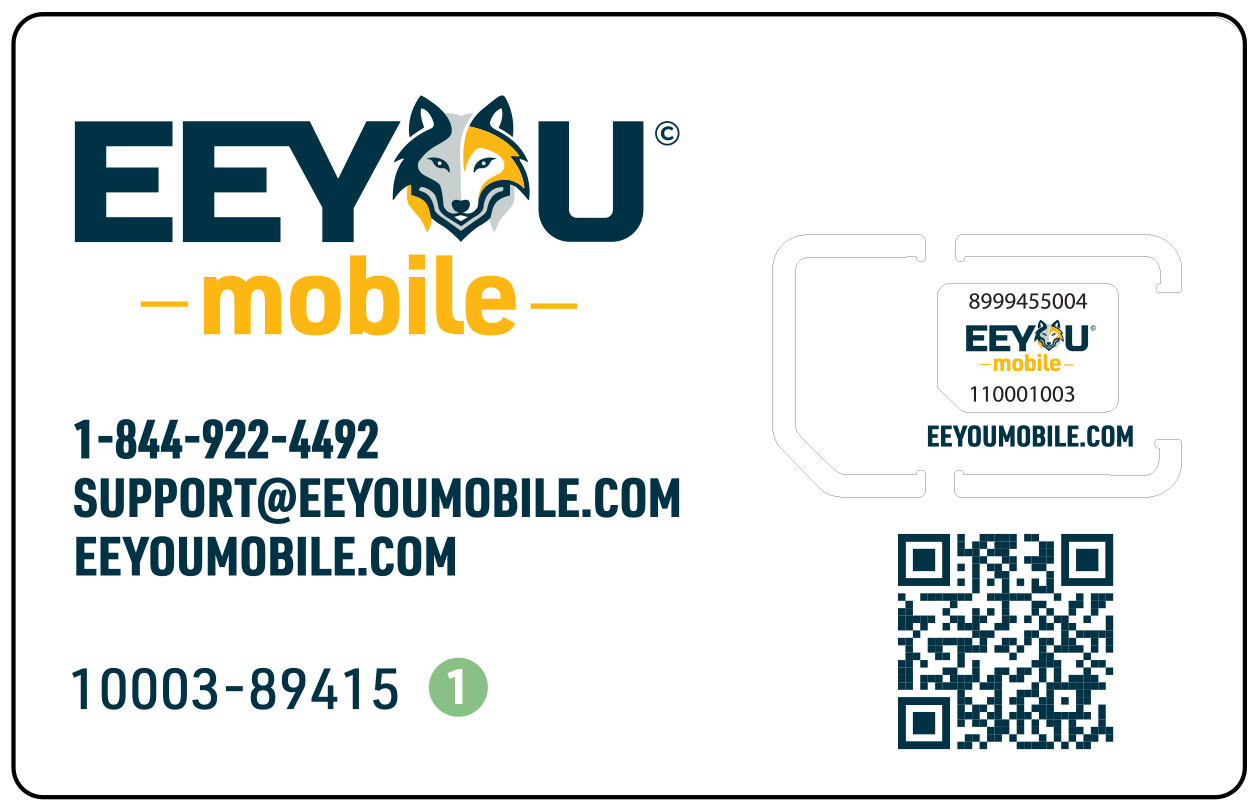
4. Enter the 10-digit Activation Code from your SIM card. 1
5. You will now be able to select a Mobile Plan and use the Mobile Wallet to purchase additional data and minutes with a credit card.
6. To pay with cash, contact your local Retailer.
 Device Setup
SET UP YOUR LTE DATA
1. Access your Settings menu
2. Depending on your version of Android:
- Select More, then Mobile Network, OR
- Select Wireless Networks, tap More and then Mobile Networks, OR
- Select Network & Internet, then Mobile Network, OR
- Select Network & Internet, then Mobile Network, then Advanced
3. Select Access Point Names, then Add or +
4. Enter the following information in the appropriate fields, and leave all other fields as they are:
Name: Eeyou Mobility
APN: apn.em.com
MMSC: http://mms.eeyoumobility.com/
MMS proxy: mms.eeyoumobility.com
MMS port: 80
5. Select More (If Android 7 or 8, select the icon), and then Save
6. Select/activate the new Access Point Name that you have just created
7. If your device does not immediately establish a data connection, reboot the device
1. Depending on your version of iPhone:
- Tap: Settings – Cellular – Cellular Data Options – Cellular Data Network – APN.
- Tap: Settings – Cellular – Cellular Data Network – APN.
- Tap: Settings – Mobile Data – Mobile Data Options – Mobile Data Network – APN.
2. Enter the following Eeyou Mobile Data APN and MMS settings:
Cellular Data APN: apn.em.com
LTE setup APN: apn.em.com
MMS APN: apn.em.com
MMSC: http://mms.eeyoumobility.com/
MMS proxy: mms.eeyoumobility.com
(Note: APN needs to be entered in three different places on the same screen as above).
3. Save the settings.
VOICEMAIL
Review Eeyou Mobile Voicemail settings*:
1. Select the phone icon and then the three vertical dots in the upper right corner.
2. Depending on your version of Android: – Tap: Settings – Calls -Voicemail -Setup.
– Tap: Settings – Voicemail – Advanced Settings – Setup.
3. Ensure Voicemail is setup to use the Eeyou Mobile Voicemail number 15819739191.
Set up your personal Voicemail
1. Access Voicemail menu: There are multiple ways to access your personal Voicemail. You can access Eeyou Mobile Voicemail with any of these methods on most phones:
a) On the keypad, press and hold the number 1;
b) Call 581-973-9191 (Eeyou Voicemail system);
c) Dial *86 (shortcut to Eeyou Voicemail system).
2. Enter default password “0000”.
3. Enter your new password (Something you can remember).
4. Confirm your new password.
5. Record a greeting that will be heard when somebody is calling.
6. Record a spoken name that will be heard when you leave messages with others.
*NOTE: See your device’s user manual for additional configuration details or to find the Voicemail, Data APN and MMS settings location.
The Voicemail number should be configured automatically from the SIM card.
Set up your personal Voicemail
1. Access Voicemail menu: There are multiple ways to access your personal Voicemail. You can access Eeyou Mobile Voicemail with any of these methods on most phones:
a) On the keypad, press and hold the number 1;
b) Call 581-973-9191 (Eeyou Voicemail system);
c) Dial *86 (shortcut to Eeyou Voicemail system).
2. Enter default password “0000”.
3. Enter your new password (Something you can remember).
4. Confirm your new password.
5. Record a greeting that will be heard when somebody is calling.
6. Record a spoken name that will be heard when you leave messages with others.
*NOTE: See your device’s user manual for additional configuration details or to find the Voicemail, Data APN and MMS settings location.
UNLOCKING YOUR PHONE
Eeyou Mobile Supplied Phones
All phones sold by Eeyou Mobile via your Retailers are sold “Unlocked”. It is a good idea to ask your Retailer to insert your SIM card to make sure your new phone connects to the Eeyou Mobile network. Follow all instructions above and there should be no problems.
If Your Device is Locked
If you are using a phone that was connected to another network, it may still be locked to that old network. If you insert your SIM card, and you cannot make a phone call, your phone may be locked to your old provider. To unlock your phone:
1. Look up your 15-digit IMEI number unique to your phone.
Android – Open Settings – About device – Status – Find the “IMEI” section. iPhone – Open Settings – General – About – Find the “IMEI” section.
The fifteen-digit number listed in the IMEI section is your phone’s IMEI number.
2. Call your previous provider and ask them to unlock your phone. (See chart below for common carriers. They will ask for your IMEI.)
Bell Mobility: Unlock your Bell device
Rogers: 1-888-764-3771
Telus: 1-866-558-2273
Bell MTS: 1-800-883-2054
Virgin Mobile: 1-888-999-2321
3. Power off your phone.
4. Insert the SIM card start again using “Device Activation Instructions”
 Billing
Contracts and credit checks
There’s a $10 standard fee for a SIM card — the smart little “chip” that connects your phone to our network.
Fees
Most of our plans include “Canada-Wide” voice and data which is used when roaming outside the Eeyou Istchee James Bay region. When the Canada-Wide monthly roaming limit on your plan is consumed, additional Canada-Wide voice or data will be charged against your Pay-As- You-Go Balance.
Dial *111# to see the remaining balances for your Pay-As-You-Go Balance, calling minutes and data. You can also access your balances in your customer portal.
Roaming phone and data charges
Each local representative offers a small selection of phones to choose from. You can also explore and order from a wider selection online through the customer portal — and your local representative will be happy to help you with that!
Phone purchase
Each local retailer offers a selection of phones to choose from. You can also explore and order from a wider selection online through the customer portal — and your retailer will be happy to help you with that!
 Manage Account
Managing Your Eeyou Mobile Account is easy! Here is all the information you need.
1. Accessing Your Account
- Visit the Eeyou Mobile customer portal.
- Log in using your registered email address and password.
- If you forgot your password, use the “Forgot Password” option to reset it.
2. Checking Your Balance and Usage
From your dashboard, you can:
- View your current Pay-as-you-go balance
- Check data, minutes, and texts remaining in your plan
- See billing history and previous payments
3. Making Payments
- Log in and go to “Billing Details”.
- Choose your payment method. You can also make one-time payments anytime.
4. Changing or Upgrading Your Plan
- Click on your subscription in your account.
- Click on “Schedule a plan” if you currently have an active plan, or “Re-activate” your subscription if it has expired.
- Select the desired plan and checkout.
5. Viewing and Downloading Bills
- Go to “Billing Details”.
- You can download or print your invoice for your records.
6. Reporting Issues
If you notice unexpected charges, billing errors, or account access issues:
- Contact Eeyou Mobile Customer Care by phone or email. We will be happy to assist you. • Have your account number ready for faster service.
 How to use Pay-As-You-Go
Accessing Pay-As-You-Go
With Pay-As-You-Go, you can manage calling, data, and roaming top-ups automatically.
Just add funds to your balance in advance, and any usage beyond your plan will be deducted as you go.
You can also go directly to: https://www.eeyoumobile.com/my/lte
Once signed in, open the Subscription section to view your Mobile Plan and Pay-As-You-Go Balance.

Each Mobile subscription has its own Pay-As-You-Go balance. If you have multiple subscriptions, you’ll see a separate balance for each one.
Adding Funds
1. Hit the “Wallet” button.

2. The subscription details will be opened. Click on “Add Funds”.
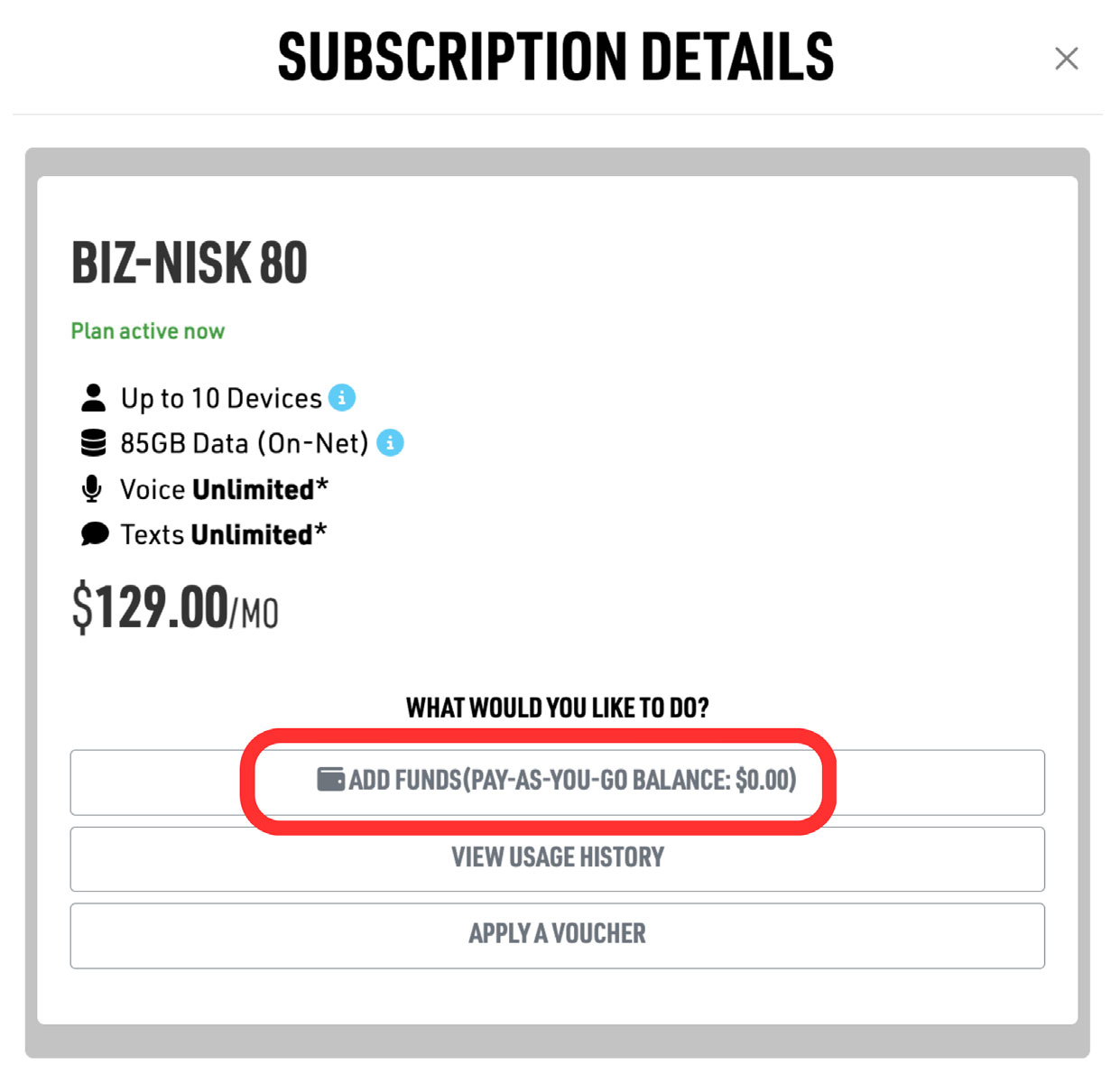
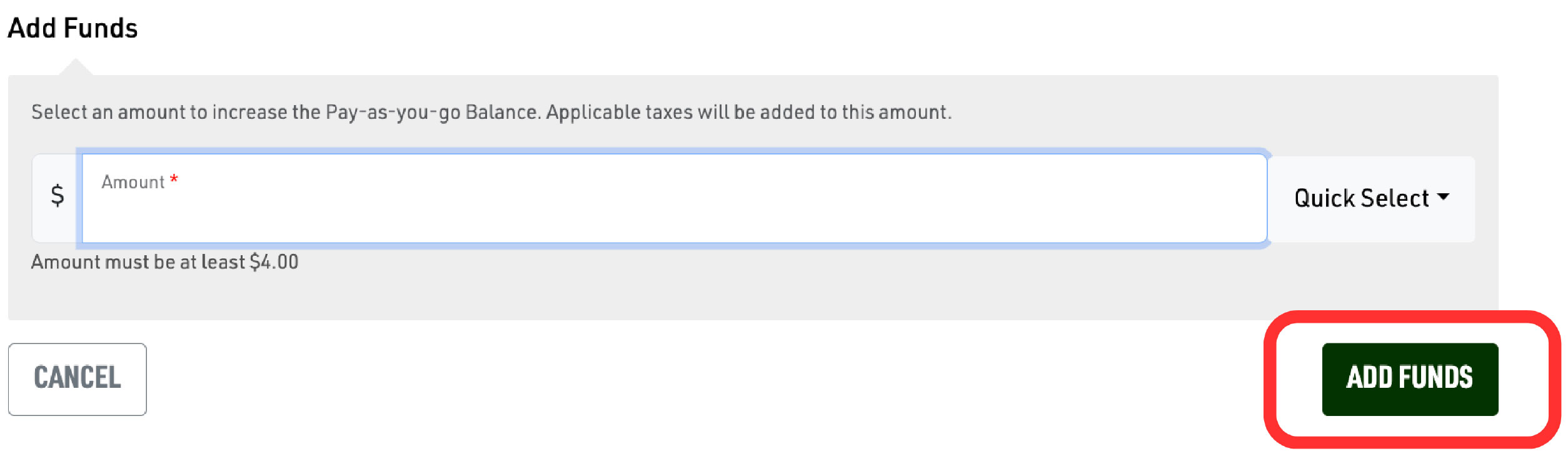
3. Select the amount of funds to be added. Then select “Add Funds”
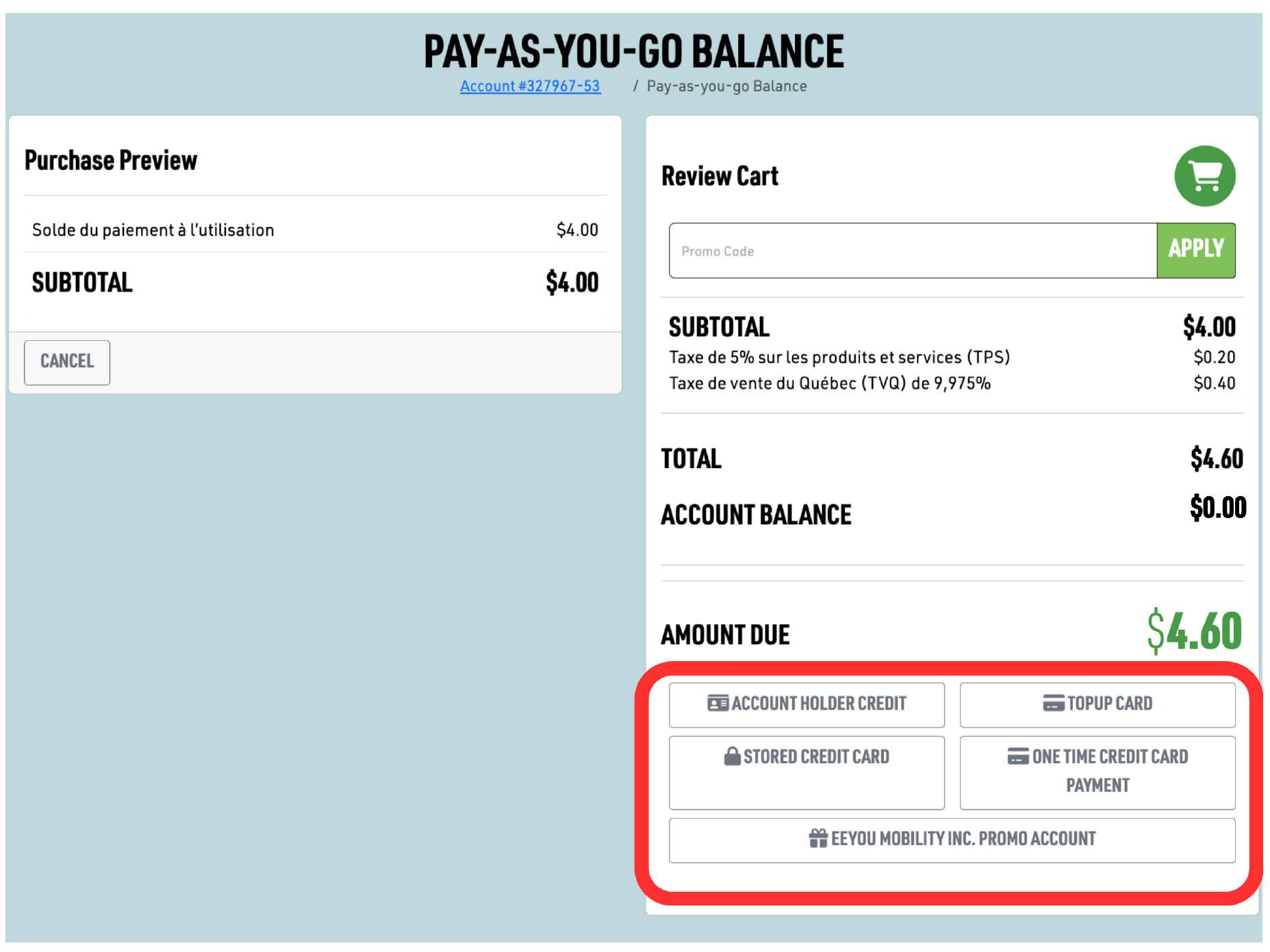
4. Review your order and select a credit card payment method.
5. Fill in the necessary credit card information and then select the “Pay”
Purchasing Additional Usage
You can use your Pay-As-You-Go balance to cover extra usage when your monthly Mobile Plan reaches its calling or data limit.
You can also use it for services not included in your monthly plan:
- USA or International calling minutes
- International roaming minutes (where available)
- International roaming data (where available)
By adding funds in advance, charges for extra usage are automatically deducted from your Pay-As-You-Go balance as you use them.
Your Pay-As-You-Go balance cannot be used to purchase or renew monthly Mobile or Internet Service Plans. These are paid from your Account Balance, which is separate from your Pay-As-You-Go balance.
Still Have Questions?
Our Eeyou Mobile Customer Care team is here to help. Call us at 1-844-922-4492
Email us at customercare@eeyoumobile.com
 Universal Call Blocking
Protecting our customers from illegitimate phone calls
Universal Network-Level Call Blocking is a service mandated by the Canadian Radio- Television and Telecommunications Commission (CRTC) to protect phone customers in Canada from receiving certain types of unsolicited calls. SSi is implementing this service on the SSi Mobile network, at no charge to customers, beginning in December, 2019.
Any inbound calls containing telephone numbers that do not conform to the established North American or International numbering plans are considered “malformed” and will be blocked. This includes:
Calls where the number being displayed has more than 15 digits
Invalid numbers (for example 222-222-2222 or calls displaying area codes that do not exist)
These are often unwanted, unsolicited, or spam phone calls and typically originate from telemarketers who attempt to spoof their call display with inaccurate, false or misleading information. Unfortunately, this new call blocking service will not block all spam calls. Those with legitimate display numbers will still be treated as normal calls.
For more detailed information on the CRTC’s Universal Network-Level Call Blocking policy, see https://crtc.gc.ca/eng/archive/2018/2018-484.htm.
 Complaints
At Eeyou Mobile, we take your concerns very seriously. If our Customer Care representative was not able to resolve your issue, please email complaints@eeyoumobile.com, and one of our senior management staff will be happy to assist you.
You can also contact the Commission for Complaints for Telecom-television Services (CCTS). CCTS is an independent agency whose mandate is to resolve complaints of consumers about their telecom and TV services, and complaints of small business customers about their telecom services, free of charge. If you have a complaint about your mobile service, you must first try to resolve it directly with your service provider. If you have done so and have been unable to reach a satisfactory resolution, CCTS may be able to help you.
To learn more about CCTS, you may visit its website at www.ccts-cprst.ca or call toll free at 1-888-221-1687. You can also email the CCTS at response@ccts-cprst.ca.